6 sports.
One scoreboard.

Turn your iPad into a scoreboard for six sports. Keep the score, match time and game or set results together, with controls on your iPhone.

iPadOS 17+ · iPhone with iOS 17+

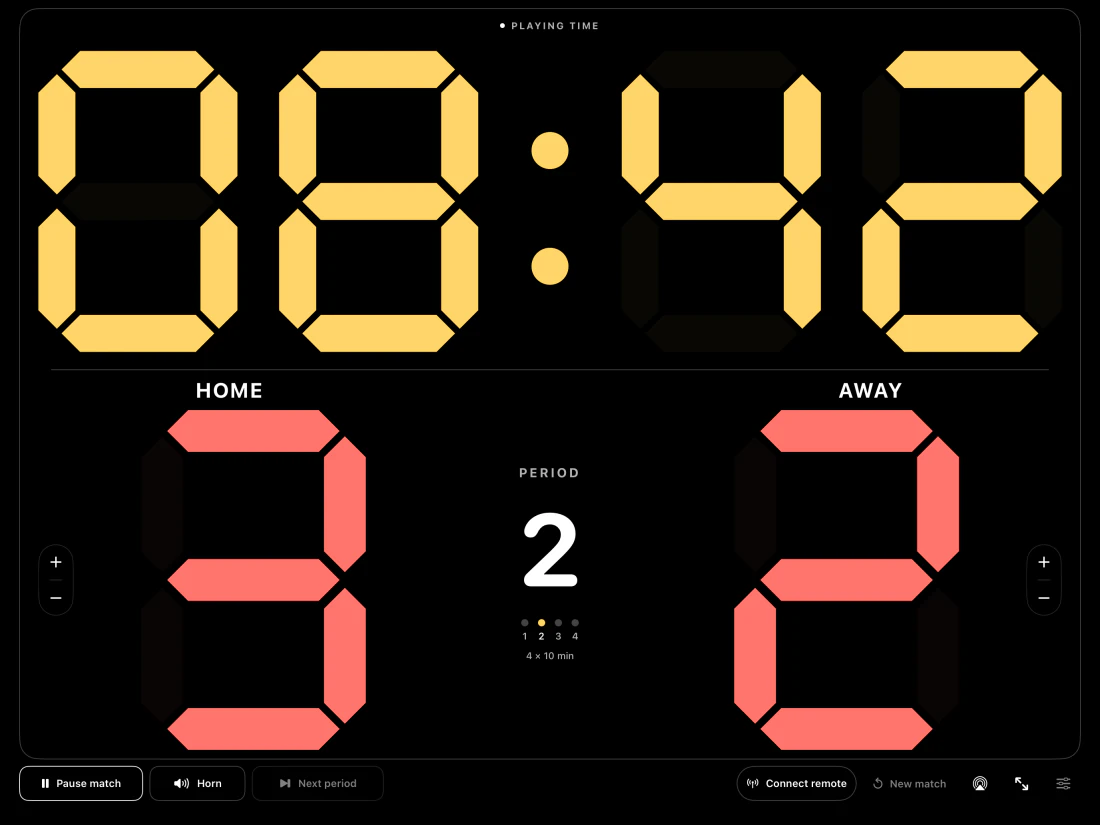
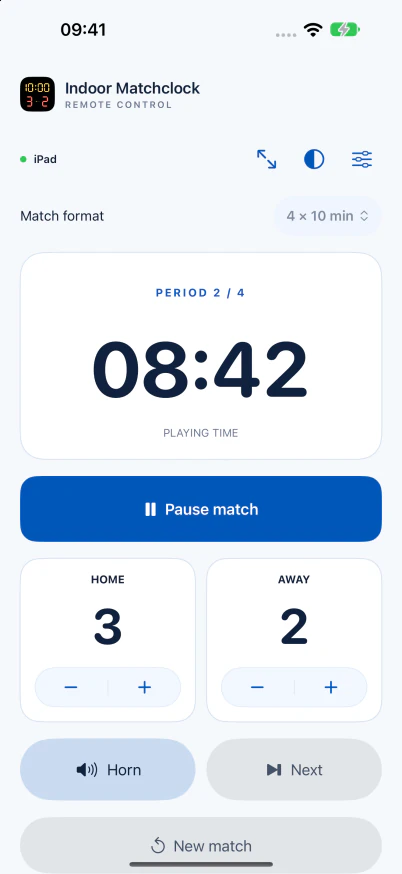
Indoor hockey

4 × 10 · 4 × 15

Set up 4 × 10 or 4 × 15 minutes. Track both teams’ goals, let the configured breaks count down and start each following period yourself. The horn marks the end of each period.

Free download · 3-day trial · €9.99 permanent unlock · Pricing and trial

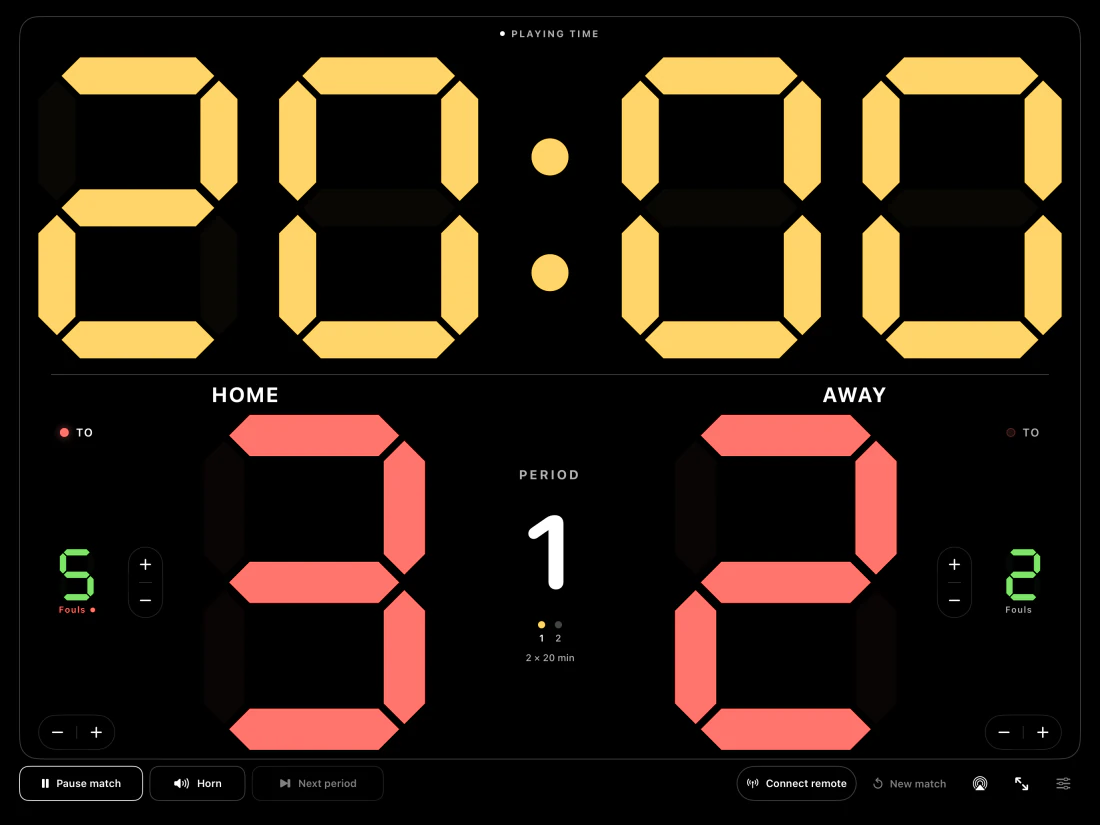
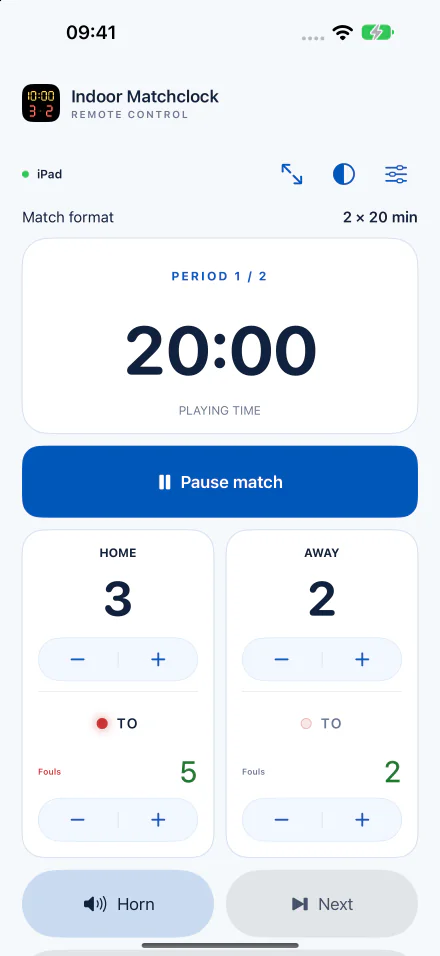
Futsal

2 × 20

Futsal on iPad: 2 × 20 minutes, goals and team fouls. TO pauses the match clock and starts a 60-second countdown. Control from iPad or iPhone.

Free download · 3-day trial · €9.99 permanent unlock · Pricing and trial

Basketball

FIBA · NBA · NCAA

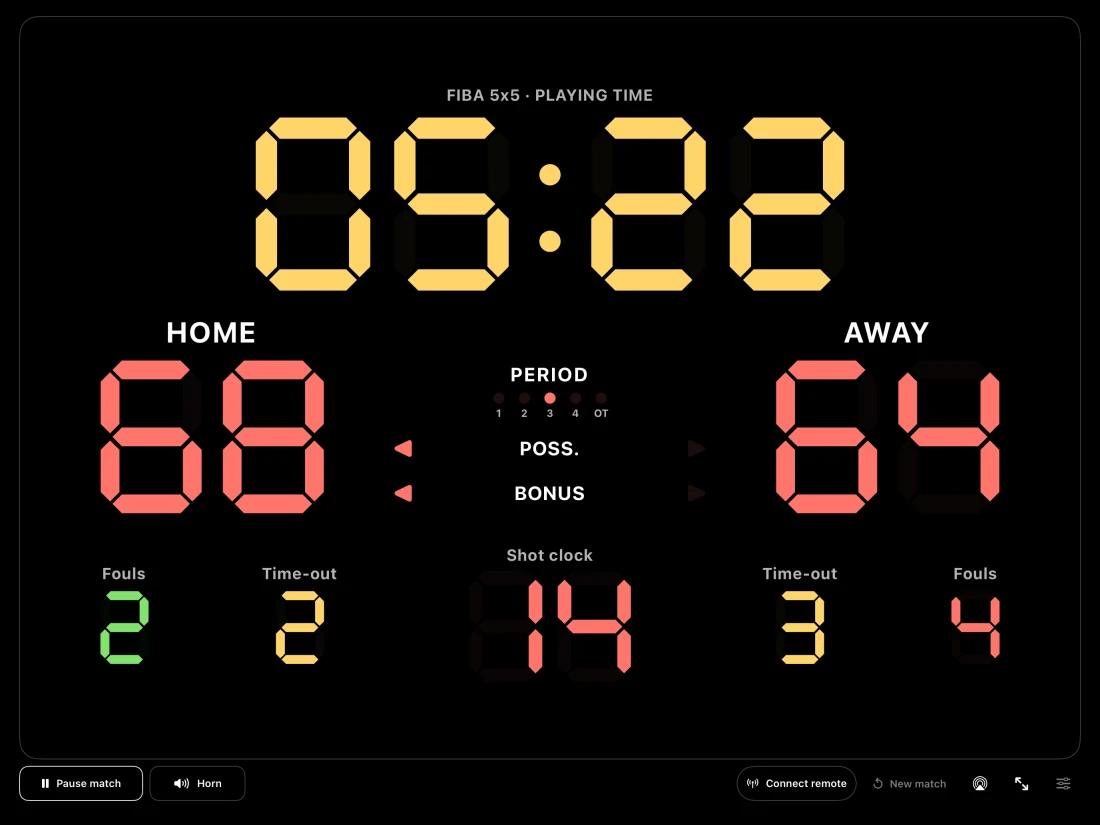
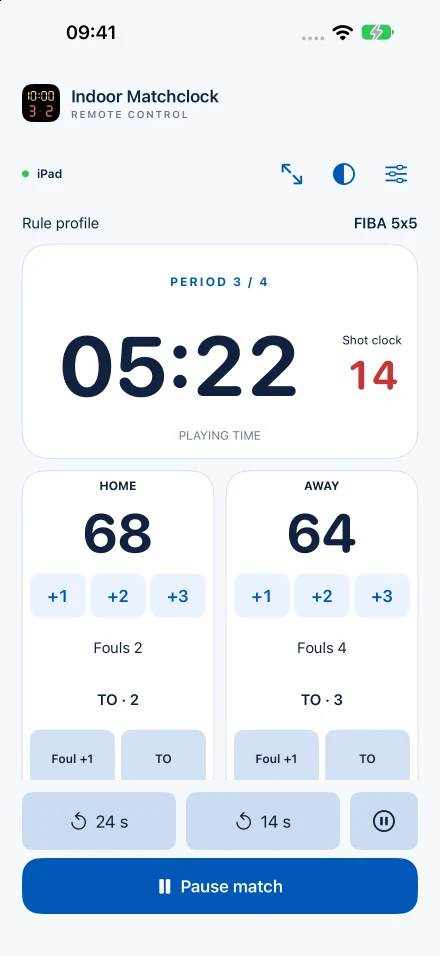
Game time, shot clock, score, possession, team fouls, bonus and remaining time-outs together on your iPad. Use the iPhone remote for basketball-specific controls.

  • Supports FIBA 5×5, FIBA 3×3, NBA and NCAA (men and women), plus custom competition and youth / training profiles.
  • Scoring and the shot clock follow your selected rules. Score changes and shot-clock resets stay separate.
  • Fouls, bonus and available time-outs follow the selected rule profile.

Free download · 3-day trial · €9.99 permanent unlock · Pricing and trial

Badminton

BWF · 21 & 15 points

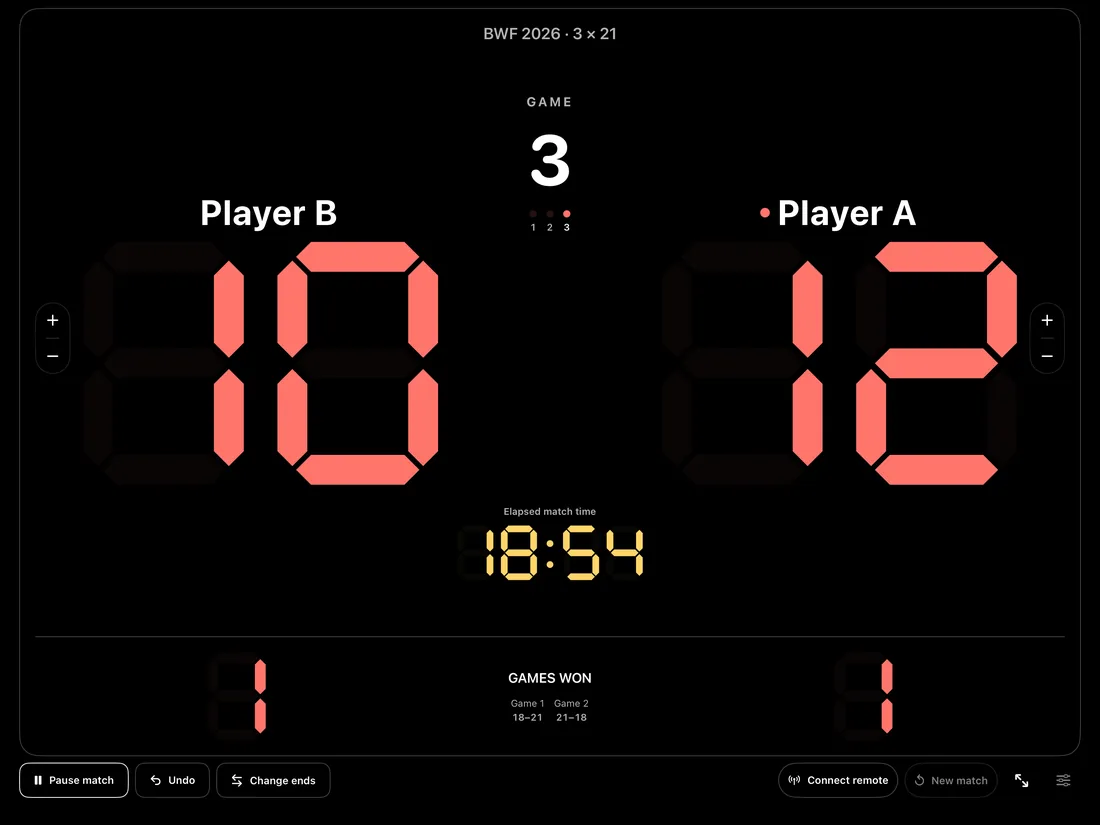
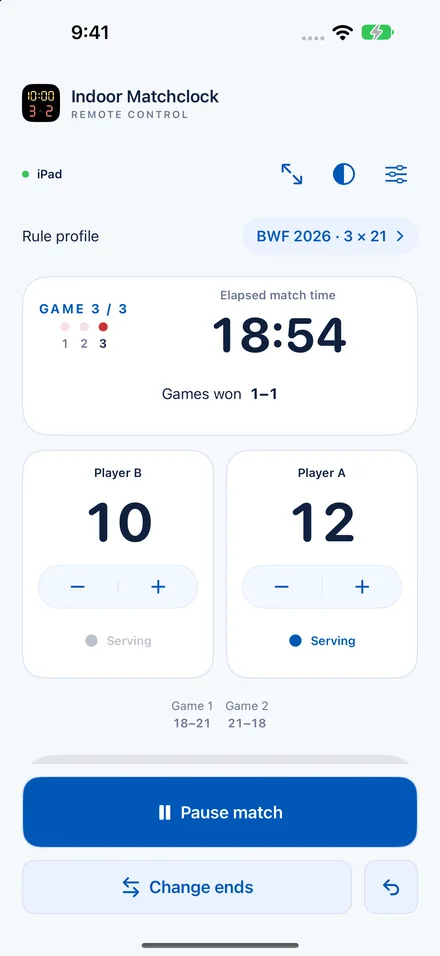
Turn your iPad into a clear badminton scoreboard for matches and training. Keep points, games won and the serving side together, while your iPhone gives you the scoring and service controls at hand.

Free download · 3-day trial · €9.99 permanent unlock · Pricing and trial

Table tennis

ITTF · Best of 5 or 7

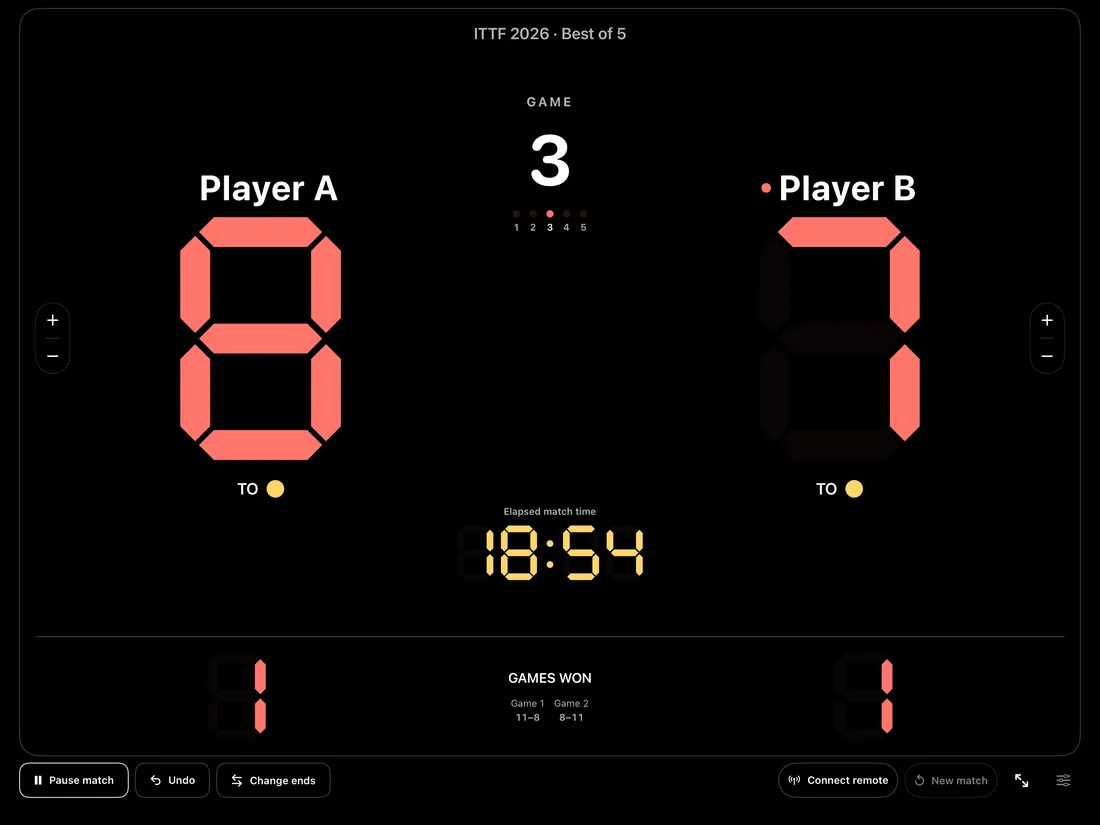
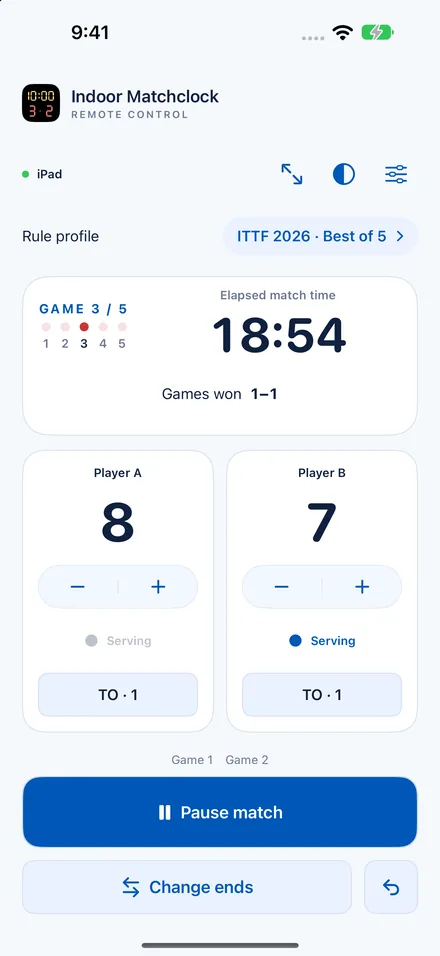
Keep every rally in view with a table-tennis scoreboard for points, games and service. Choose a best-of-five or best-of-seven match, record the score on your iPhone and follow the game results on your iPad.

Free download · 3-day trial · €9.99 permanent unlock · Pricing and trial

Volleyball

Points · Sets · Service

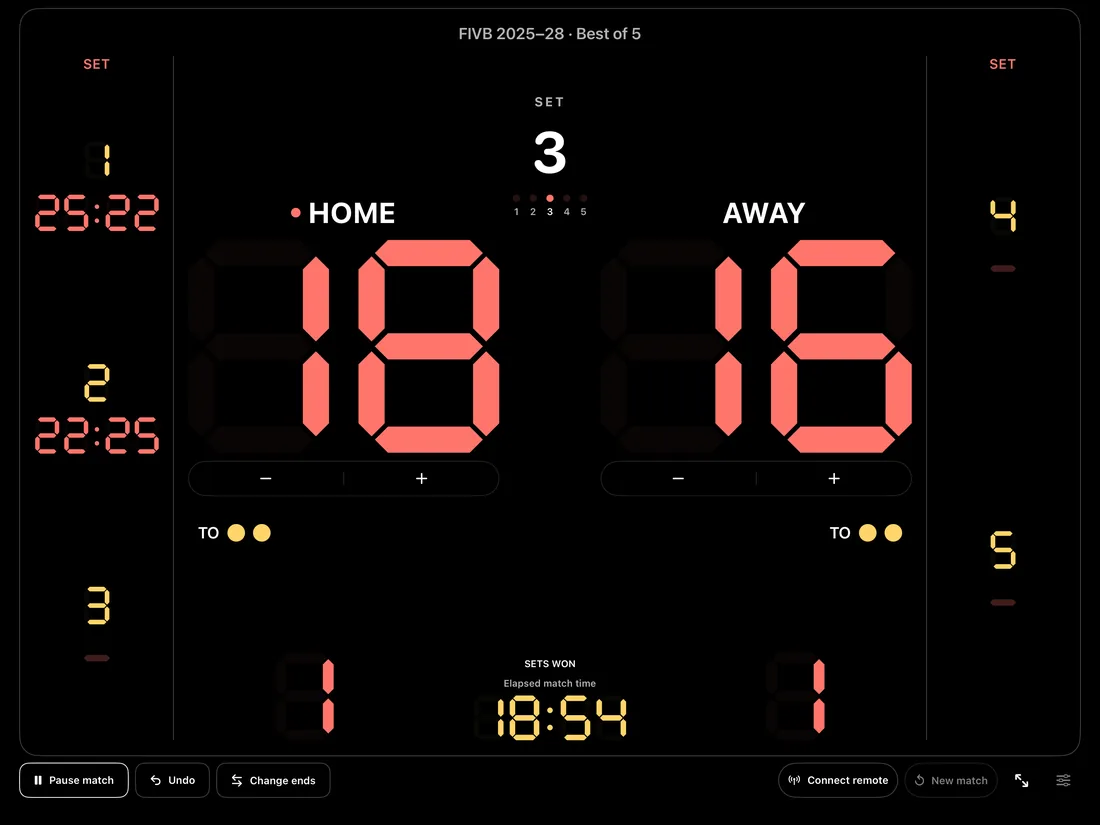
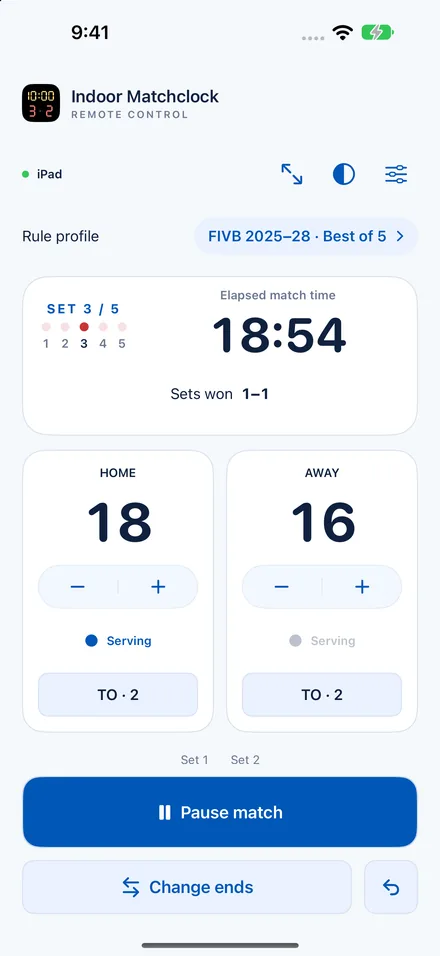
Give your match table a clear view of points, sets won and the serving team. Keep the scoreboard visible on iPad while you use your iPhone to manage scoring and service throughout the volleyball match.

Free download · 3-day trial · €9.99 permanent unlock · Pricing and trial

Try it at your next match.

Try every match feature on iPad, then unlock it with one payment. No subscription. No automatic charge.

3 days on iPad

Free

Activate the trial when you are ready. You get every match feature for 72 consecutive hours from activation.

Permanent unlock

€9.99

Pay once for unlimited matches and all current match features on iPad.

Includes all six sports on every iPad signed in with the same Apple Account.

iPhone & Apple Watch remotes

Free

Volunteers can use their own Apple Accounts without buying an unlock or joining a family group. The host iPad needs an active trial or permanent unlock. Use the Watch near the iPad.

Family Sharing, expiry and restore

Includes Family Sharing for eligible members of your Apple family group with Purchase Sharing enabled.

You can finish a match already underway when the trial ends. A new or reset match requires the permanent unlock.

Reinstalling does not restart the trial. Restore purchases with the same Apple Account to recover your original trial expiry or permanent unlock. The trial is individual; Family Sharing applies to the permanent unlock.

€9.99 is the Belgian price. Your local App Store price is shown before purchase. Activation, purchases and restoration may require internet; matches run locally.

One match. Two devices.

The iPad manages the clock, scores and sound. Your iPhone is the remote control. Pairing is local and encrypted, with no account or server.

How to pair your iPhone
iPad

The match desk

Keeps track of the match and sounds the final horn.

iPhone

The remote control

Shows the confirmed state and sends your commands.

A glance. You’re up to speed.

Time, scores and the period on your iPhone Lock Screen. On supported models, Dynamic Island also shows the match while another app is open.

Tap the Live Activity to open your remote. The iPad stays in charge of the clock, scores and sound.

iPhone Lock Screen with the Indoor Matchclock Live Activity: 08:42, home 3, away 2, period 2 of 4, paused.
Live Activity on iPhone.

The match, on your wrist.

For match-table officials and volunteers near the iPad: see time and scores and operate the essential match controls from your wrist.

Start. Pause. Goal.

Start and pause the clock, add or correct goals and trigger the horn on the iPad. Futsal fouls and TO markers are controlled on iPad or iPhone.

At the match table

Use by players or referees on the field is not supported because Bluetooth range is limited.

Use one remote at a time. An iPad is required; match settings and moving to the next period stay on the iPad or iPhone.

Use the iPhone remote for basketball-specific controls.

Requirements

The Apple Watch remote is included with the app on the App Store. watchOS 10+ and iPadOS 17+. Bluetooth permission on both devices. Apple’s normal Watch installation requirements apply.

English Apple Watch Ultra remote: period 2 of 4, paused at 08:42, score 3–2 and a Start button.
English Watch screen for adjusting home and away goals with plus and minus buttons.
Apple Watch Ultra with a sample match.

Your first match, in three steps.

Before your first match, open settings on the iPad to activate the free 3-day trial or buy the permanent unlock. iPhone and Watch remotes are free.

  1. Prepare the match

    Place the iPad in landscape. Open Match settings, choose your sport, enter the player or team names and select the match format or rule profile. Save when ready.

  2. Check your controls

    Check the scoreboard and your connected remote before play. For timed matches, also test the horn and audio output.

  3. Start and keep score

    Start the match using the control shown for your sport. Track goals or points with the score controls. For badminton, table tennis and volleyball, choose the serving side.

Fullscreen and quick corrections
  1. Tap the expand icon between AirPlay and settings on iPad, or the expand icon on the iPhone remote, to switch the iPad to fullscreen. Use the same icon to return.
  2. Tap a score, the clock or the period on iPad to make a correction. Time and period can also be corrected on iPhone. Changing the period keeps the current time and scores.
  3. In futsal, tap a foul counter to correct it. Futsal time-outs stop the game clock and start a separate 60-second countdown. The held game time stays visible. Resume play before a futsal or basketball time-out ends. The used time-out remains recorded. After the countdown expires, play stays paused until you resume it.
  4. Set the horn duration from 1 to 10 seconds in settings and preview it before the match. Sounding the horn normally does not pause the clock.

Keep the iPad app open. The clock pauses when you leave it, when the active horn is interrupted or when the current audio output disconnects. Ordinary idle audio interruptions do not pause the match. Check the time and sound before resuming.

By sport

Remotes

Pair your iPhone
  1. Install the same app on the iPad and iPhone. Each device chooses its role automatically.
  2. Turn on Wi-Fi and Bluetooth on both devices and allow Local Network access.
  3. On the iPad, tap Connect remote → iPhone. The iPad is visible for two minutes under a short, unique name.
  4. On the iPhone, tap Find my iPad, select that name, compare the six-digit codes on both screens and confirm on the iPad with Connect only if they match.

After pairing succeeds, the connection window on the iPad closes automatically. If there is a problem, the message stays visible.

Keep the iPad app open. Use the iPhone app for controls, or glance at its Live Activity while it is locked or another app is open. One remote can control the match at a time. Sound comes from the iPad or its connected speaker.

Set up Apple Watch

For match-table officials and volunteers near the iPad: see time and scores and operate the essential match controls from your wrist.

watchOS 10+ and iPadOS 17+. Bluetooth permission on both devices. Apple’s normal Watch installation requirements apply.

  1. Install Indoor Matchclock on the iPad and the iPhone paired with your Watch. Use the iPhone’s Watch app to install Indoor Matchclock on the Apple Watch if it is not already there.
  2. Turn on Bluetooth and allow Bluetooth access on both iPad and Watch. On the iPad, open Connect remote → Apple Watch and leave the pairing window open. If another remote is approved, disconnect it first.
  3. Open Indoor Matchclock on the Watch, tap Find my iPad and choose the name shown on the iPad.
  4. Compare the six-digit codes on both screens. Tap Connect on the iPad only if they match. After connection, the iPad pairing window closes.

Before the match, test start, pause and the horn at the match table. Keep the iPad app open. Use only one remote at a time, and keep the Watch near the iPad.

Use by players or referees on the field is not supported because Bluetooth range is limited.

Follow the match on your iPhone Lock Screen

After pairing, a Live Activity appears automatically if Live Activities are allowed in Settings → Apps → Indoor Matchclock. It shows time, scores and the period on the Lock Screen and in Dynamic Island on supported iPhones. Tap it to open the remote; use the app to send commands.

The iPad remains the match clock and must stay open. iOS may suspend the iPhone app in the background. If updates stop, the displayed countdown stops within 12 seconds, or sooner at the end of the phase. The activity can then show Last iPad time · tap to reconnect. Open the remote to refresh the match. It never starts a break or the next period by itself.

Good to know.

Do I need internet or Wi-Fi in the sports hall?

The match does not need an internet connection. The devices can pair directly without a router. Wi-Fi and Bluetooth must be switched on. Test the range with your own devices and setup before the match.

Can players or referees use the Apple Watch on the field?

No. The Apple Watch remote is only intended for match-table officials and volunteers near the iPad. Use by players or referees on the field is not supported because Bluetooth range is limited. Test the connection at the match table before the match.

What happens if the iPhone loses its connection?

The iPad clock keeps running. The iPhone disables its controls when it stops receiving recent updates. Continue using the iPad. When you return to the iPhone app, it tries to reconnect to the approved iPad for the current match. A new match keeps pairing approval. Restarting an app, explicitly disconnecting or replacing the remote requires pairing again. If an action could not be confirmed, check the iPad before resuming control. Old commands are not sent again.

Does the final horn work in the background?

No. Keep the iPad app in the foreground. Both screens stay awake while the app is active, including during a pause or without a connection. The iPad uses maximum brightness.

How do I change the language or appearance?

The app follows your preferred system languages: Dutch, French, English, German, Spanish, Portuguese, Italian, Polish, Croatian, Danish, Norwegian Bokmål, Swedish, Japanese, Korean, Simplified Chinese or Traditional Chinese, with English as the fallback. To choose a language for the app, open Settings → Apps → Indoor Matchclock → Language on your iPhone or iPad. On older iOS versions, Indoor Matchclock is directly under Settings. The Apple Watch follows the app language synced by Apple. Changing language restarts the app; a saved match reopens paused.

The iPad uses a black scoreboard. Use the theme icon on the iPhone for a light, dark or automatic appearance.

Can I track penalties or time-outs?

Futsal time-outs stop the game clock and start a separate 60-second countdown. The held game time stays visible. Resume play before a futsal or basketball time-out ends. The used time-out remains recorded. After the countdown expires, play stays paused until you resume it. There are no separate penalty clocks. It also does not include a second public display or control of an existing physical scoreboard.

Does this replace the sports hall scoreboard?

The app is a tool for the match desk. Check which equipment your competition requires. Test audibility, Bluetooth delay and the speaker connection in advance; an iPad has different visibility from a large public scoreboard.

Need help?

For questions about Indoor Matchclock or help with a problem, email [email protected]. Include your device, iOS or iPadOS version and what happens. The guide above covers pairing; the sport pages explain the match clock and sound.

Indoor Matchclock app icon

Bring clarity to your match desk.

Free download · 3-day trial · €9.99 permanent unlock · Pricing and trial

Download on the App Store