Indoor hockey: Scoreboard & match clock for iPad

4 × 10 · 4 × 15

Set up 4 × 10 or 4 × 15 minutes. Track both teams’ goals, let the configured breaks count down and start each following period yourself. The horn marks the end of each period.

Free download · 3-day trial · €9.99 permanent unlock · Pricing and trial

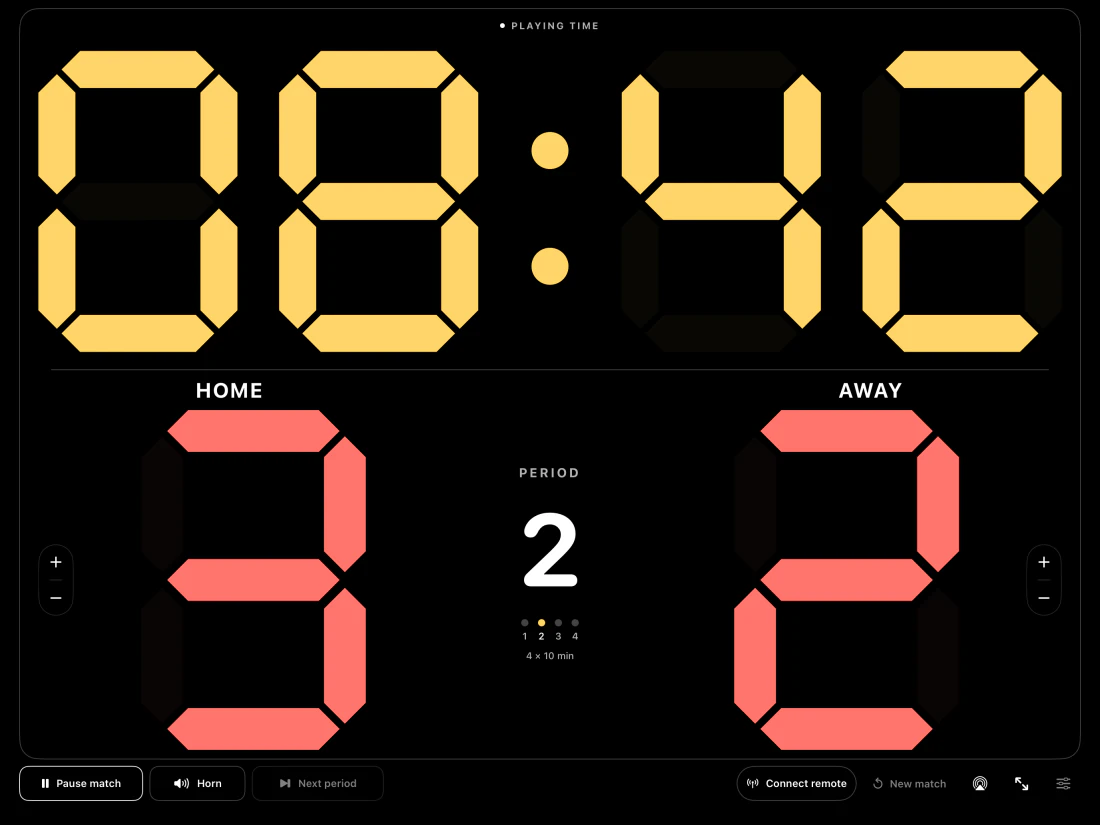
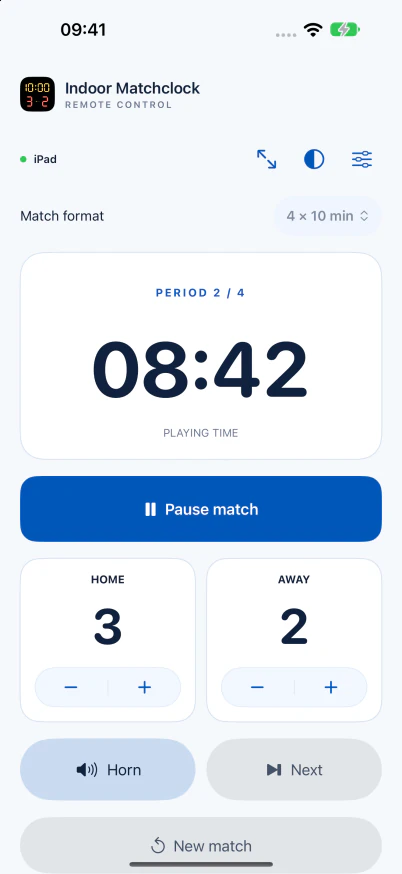
iPad scoreboard showing 08:42, score 3–2 and period 2, with vertical score controls. iPhone remote showing 08:42 and score 3–2, with fullscreen, appearance and settings controls.

Set up indoor hockey

  1. Sport and format

    With the playing clock stopped, outside a break, open Match settings → Sport → Indoor hockey on the iPad. Choose 4 × 10 or 4 × 15 minutes.

  2. Names and breaks

    Check the team names and the 1–3–1 minute break preset. Adjust the durations to your competition rules and tap Save. Choosing a sport or format resets the playing clock to its full duration.

  3. During the match

    Tap Start period and pause for stoppages. Use + and − for goals on iPad, iPhone or Apple Watch. After the final signal the break clock starts automatically; you start the next period yourself.

Sports, settings and match controls

Clock and periods · Indoor hockey, futsal and basketball

Under Sport, choose indoor hockey, futsal or basketball. For basketball, also choose your rule profile. Supports FIBA 5×5, FIBA 3×3, NBA and NCAA (men and women), plus custom competition and youth / training profiles.

Use the iPad in landscape. Tap Match settings to set the team names, number of periods and period duration. Choose Set clock to full period duration if you also want to adjust the current clock.

Under Sport, switch between Indoor hockey, Futsal and Basketball. Indoor hockey fills in 4 × 10 minutes and 1–3–1 minute breaks; you can also choose 4 × 15 minutes. Futsal fills in 2 × 20 minutes and a 5-minute break as a starting point. Use Custom duration for other playing times and follow your competition rules. Choosing a sport or format resets the match clock to the full duration.

Under Automatic break timers, set the Short break and Half-time break separately, from 0:00 to 99:59, to the second. Only relevant breaks appear. At 0:00 that break is skipped. The schedule below shows each break for review. Tap Save to apply or Cancel to keep the previous settings. Changing the format of a match already in progress requires confirmation. Team names and scores stay; the current period is reduced to the new period count if needed. New match returns to 0–0 in period 1, keeping your sport and durations.

You can also choose New match at the bottom of the iPhone remote. Pause the clock first, then confirm. Team names and match settings are kept.

Sound · Timed matches

Use the iPad speaker or pair a speaker in Settings → Bluetooth on the iPad. Check the audio output and volume, then test the Horn in the sports hall, including after a period of silence.

For a starting signal too, turn on Match settings → Horn → Horn at period start on the iPad and tap Save. It is off by default. The horn sounds at the first start of each period, including a start from an iPhone or Apple Watch, but not when resuming after a pause. Your choice is kept for the next match. The end-of-period horn always stays on.

Start a timed match

Tap Start period. Use + and − for goals; in basketball, use +1, +2 and +3 for points. Pause for interruptions.

After the horn, the configured break starts automatically. Indoor hockey defaults to 1–3–1 minute breaks; futsal starts with 5 minutes between its two periods. After the break — or immediately for a 0:00 break — the next period is ready. Tap Start period to begin; playing time never starts automatically.

For four-period indoor hockey, the iPad shows BREAK AFTER PERIOD 1/3 for the short breaks and HALF-TIME · BREAK AFTER PERIOD 2 for the middle break. A paused break is clearly marked.

Need to move to the next period early? Pause the clock, choose Next period on the iPad or Next on the iPhone, then confirm. The next period is ready and waits for Start period.

You can pause a break or finish it early with End break. There is no break timer after the final period.

One match. Two devices.

The iPad manages the clock, scores and sound. Your iPhone is the remote control. Pairing is local and encrypted, with no account or server.

How to pair your iPhone
iPad

The match desk

Keeps track of the match and sounds the final horn.

iPhone

The remote control

Shows the confirmed state and sends your commands.

Good to know.

Volunteers can use their own Apple Accounts without buying an unlock or joining a family group. The host iPad needs an active trial or permanent unlock. Use the Watch near the iPad.

Officials at the match table can also use an Apple Watch as the remote, close to the iPad. Use by players or referees on the field is not supported because Bluetooth range is limited.

Do I need internet or Wi-Fi in the sports hall?

The match does not need an internet connection. The devices can pair directly without a router. Wi-Fi and Bluetooth must be switched on. Test the range with your own devices and setup before the match.

Can players or referees use the Apple Watch on the field?

No. The Apple Watch remote is only intended for match-table officials and volunteers near the iPad. Use by players or referees on the field is not supported because Bluetooth range is limited. Test the connection at the match table before the match.

What happens if the iPhone loses its connection?

The iPad clock keeps running. The iPhone disables its controls when it stops receiving recent updates. Continue using the iPad. When you return to the iPhone app, it tries to reconnect to the approved iPad for the current match. A new match keeps pairing approval. Restarting an app, explicitly disconnecting or replacing the remote requires pairing again. If an action could not be confirmed, check the iPad before resuming control. Old commands are not sent again.

Does the final horn work in the background?

No. Keep the iPad app in the foreground. Both screens stay awake while the app is active, including during a pause or without a connection. The iPad uses maximum brightness.

How do I change the language or appearance?

The app follows your preferred system languages: Dutch, French, English, German, Spanish, Portuguese, Italian, Polish, Croatian, Danish, Norwegian Bokmål, Swedish, Japanese, Korean, Simplified Chinese or Traditional Chinese, with English as the fallback. To choose a language for the app, open Settings → Apps → Indoor Matchclock → Language on your iPhone or iPad. On older iOS versions, Indoor Matchclock is directly under Settings. The Apple Watch follows the app language synced by Apple. Changing language restarts the app; a saved match reopens paused.

The iPad uses a black scoreboard. Use the theme icon on the iPhone for a light, dark or automatic appearance.

Can I track penalties or time-outs?

Futsal time-outs stop the game clock and start a separate 60-second countdown. The held game time stays visible. Resume play before a futsal or basketball time-out ends. The used time-out remains recorded. After the countdown expires, play stays paused until you resume it. There are no separate penalty clocks. It also does not include a second public display or control of an existing physical scoreboard.

Does this replace the sports hall scoreboard?

The app is a tool for the match desk. Check which equipment your competition requires. Test audibility, Bluetooth delay and the speaker connection in advance; an iPad has different visibility from a large public scoreboard.

Other sports

Indoor Matchclock app icon

Bring clarity to your match desk.

Before your first match, open settings on the iPad to activate the free 3-day trial or buy the permanent unlock. iPhone and Watch remotes are free. Includes all six sports on every iPad signed in with the same Apple Account.

€9.99 is the Belgian price. Your local App Store price is shown before purchase. Activation, purchases and restoration may require internet; matches run locally.

Download on the App Store