A clock you can read at a glance
A large yellow clock and red scores on a true black background, with the period in the centre and compact controls below. Correct the remaining time while the clock is paused.
 Indoor MatchClock
For indoor sports. From hockey to futsal.
Time, scores and the final horn for indoor hockey and futsal on your iPad. Manage the match at the table or with your iPhone beside the court. Set the periods to suit your match.
iPadOS 17+ · Optional iPhone with iOS 17+
Apple Watch remote Included in version 1.001 / Everything in one place
The controls you need, from the first whistle to the final second.
A large yellow clock and red scores on a true black background, with the period in the centre and compact controls below. Correct the remaining time while the clock is paused.
Add goals for the home and away teams. One tap too many? The minus button lets you correct the score immediately.
Choose indoor hockey with 4 × 10 or 4 × 15 minutes, or futsal with 2 × 20 minutes. Adjust playing time and break durations. You start each following period yourself.
An automatic three-second horn marks the end of each period. Add an optional horn at the first start of each period, sound it manually or connect a Bluetooth speaker.
Start, pause, change scores and prepare a new match from a paired iPhone. The time and scores stay visible on the iPad.
See time, scores and the period in a Live Activity on your iPhone Lock Screen, and in Dynamic Island on supported models. Tap to return to the remote. The iPad keeps the match running.
iPhone · Live Activities · Dynamic Island
Time, scores and the period on your iPhone Lock Screen. On supported models, Dynamic Island also shows the match while another app is open.
Tap the Live Activity to open your remote. The iPad stays in charge of the clock, scores and sound.
Keep the iPad app open. Without fresh updates, the iPhone countdown stops within twelve seconds or at the end of the phase. Open the remote to refresh.

Apple Watch Included in version 1.0
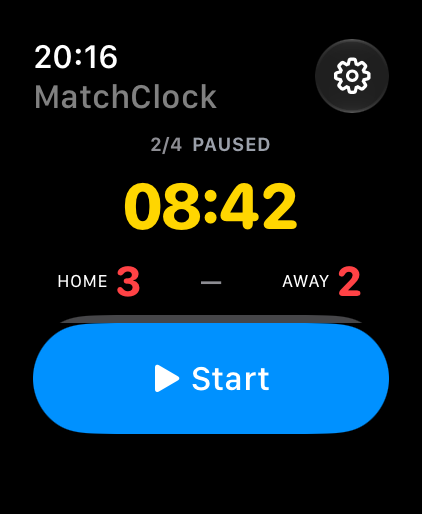
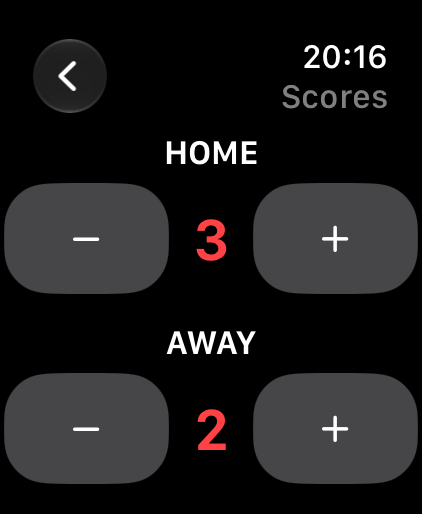
The Apple Watch remote for Indoor Matchclock shows time and scores and puts the essential match controls on your wrist.
Start and pause the clock, add or correct goals and trigger the horn on the iPad.
The Watch connects to the iPad over Bluetooth, with no iPhone relay during the match. The iPad remains responsible for the clock, scores and sound.
Choose one remote: iPhone or Apple Watch. An iPad is required; match settings and moving to the next period stay on the iPad or iPhone.
Included in version 1.0. Public App Store release will follow approval.
watchOS 10+ and iPadOS 17+. Bluetooth permission on both devices. Apple’s normal Watch installation requirements apply.
02 / Working together
The iPad manages the clock, scores and sound. Your iPhone is the remote control. Pairing is local and encrypted, with no account or server.
How to pair your iPhoneKeeps track of the match and sounds the final horn.
Shows the confirmed state and sends your commands.
Use the iPad in landscape. Tap Match settings to set the team names, number of periods and period duration. Choose Set clock to full period duration if you also want to adjust the current clock.
Under Sport, switch between Indoor hockey and Futsal. Indoor hockey fills in 4 × 10 minutes and 1–3–1 minute breaks; you can also choose 4 × 15 minutes. Futsal fills in 2 × 20 minutes and a 5-minute break as a starting point. Use Custom duration for other playing times and follow your competition rules. Choosing a sport or format resets the match clock to the full duration.
Under Automatic break timers, set the Short break and Half-time break separately, from 0:00 to 99:59, to the second. Only relevant breaks appear. At 0:00 that break is skipped. The schedule below shows each break for review. Tap Save to apply or Cancel to keep the previous settings. Changing the format of a match already in progress requires confirmation. Team names and scores stay; the current period is reduced to the new period count if needed. New match returns to 0–0 in period 1, keeping your sport and durations.
You can also choose New match at the bottom of the iPhone remote. Pause the clock first, then confirm. Team names and match settings are kept.
Use the iPad speaker or pair a speaker in Settings → Bluetooth on the iPad. Check the audio output and volume, then test the Horn in the sports hall, including after a period of silence.
For a starting signal too, turn on Match settings → Horn → Horn at period start on the iPad and tap Save. It is off by default. The horn sounds at the first start of each period, including a start from an iPhone or Apple Watch, but not when resuming after a pause. Your choice is kept for the next match. The end-of-period horn always stays on.
Tap Start period, change scores with + and −, and pause for interruptions. After the horn, the configured break starts automatically. Indoor hockey defaults to 1–3–1 minute breaks; futsal starts with 5 minutes between its two periods. After the break — or immediately for a 0:00 break — the next period is ready. Tap Start period to begin; playing time never starts automatically.
For four-period indoor hockey, the iPad shows BREAK AFTER PERIOD 1/3 for the short breaks and HALF-TIME · BREAK AFTER PERIOD 2 for the middle break. A paused break is clearly marked.
Need to move to the next quarter early? Pause the clock, choose Next period on the iPad or Next on the iPhone, then confirm. The next quarter is ready and waits for Start period.
You can pause a break or finish it early with End break. There is no break timer after the final period.
Keep the app in the foreground. The clock pauses when you leave the iPad app, when audio is interrupted or when the current audio output disconnects. Check the time and sound before resuming.
After pairing succeeds, the connection window on the iPad closes automatically. If there is a problem, the message stays visible.
Keep the iPad app open. Use the iPhone app for controls, or glance at its Live Activity while it is locked or another app is open. One remote can control the match at a time. Sound comes from the iPad or its connected speaker.
After pairing, a Live Activity appears automatically if Live Activities are allowed in Settings → Apps → Indoor Matchclock. It shows time, scores and the period on the Lock Screen and in Dynamic Island on supported iPhones. Tap it to open the remote; use the app to send commands.
The iPad remains the match clock and must stay open. iOS may suspend the iPhone app in the background. If updates stop, the displayed countdown stops within 12 seconds, or sooner at the end of the phase. The activity can then show Last iPad time · tap to reconnect. Open the remote to refresh the match. It never starts a break or the next period by itself.
On the iPad, choose Match settings → Sport → Futsal for 2 × 20 minutes. The break initially lasts 5 minutes; adjust Half-time break to your competition rules, then tap Save. Sport and scheduled durations can only change with the playing clock stopped, outside a break. During a paused break you can still correct its remaining time. The iPhone and Watch follow the confirmed iPad time and phase. Start and pause the clock yourself for stoppages. The app does not count team fouls or provide separate penalty or time-out clocks.
The match does not need an internet connection. The devices can pair directly without a router. Wi-Fi and Bluetooth must be switched on. Test the range with your own devices and setup before the match.
The iPad clock keeps running. The iPhone disables its controls when it stops receiving recent updates. Continue using the iPad. When you return to the iPhone app, it tries to reconnect to the approved iPad for the current match. Restarting an app, explicitly disconnecting or starting a new match requires pairing again. If an action could not be confirmed, check the iPad before resuming control. Old commands are not sent again.
No. Keep the iPad app in the foreground. Both screens stay awake while the app is active, including during a pause or without a connection. The iPad uses maximum brightness.
The app follows your preferred system languages: Dutch, French, English or German, with English as the fallback. To choose a language for the app, open Settings → Apps → Indoor Matchclock → Language on your iPhone or iPad. On older iOS versions, Indoor Matchclock is directly under Settings. The Apple Watch follows the app language synced by Apple. Changing language restarts the app; a saved match reopens paused.
The iPad uses a black scoreboard. Use the theme icon on the iPhone for a light, dark or automatic appearance.
This version has no separate penalty or time-out clocks. It also does not include a second public display or control of an existing physical scoreboard.
The app is a tool for the match desk. Check which equipment your competition requires. Test audibility, Bluetooth delay and the speaker connection in advance; an iPad has different visibility from a large public scoreboard.
For questions about Indoor Matchclock or help with a problem, email [email protected]. Include your device, iOS or iPadOS version and what happens. The guide above covers the match clock, pairing and sound.
Indoor Matchclock
The native match timer for indoor sports, from indoor hockey to futsal.
Availability will be announced here.